Most of the time, saving an Instagram video takes a few seconds: copy the link, paste it into Mollygram, press Download. When it doesn’t work, there’s almost always a simple reason, and usually a quick fix.
Here are the eight problems we see most often, what the message on screen means and what to do about each one.
1. The account is private
What you’ll see: “We couldn’t find any photos or videos at that link. The account may be private, or the post may have been deleted.”
Private accounts only share their posts with approved followers. Mollygram, like every other download tool, can only see what’s public, so videos from private accounts can’t be downloaded.
The fix: there isn’t a workaround, and that’s deliberate: private means private. If it’s a friend’s video, the simplest thing is to ask them to send it to you.
2. The post has been deleted or archived
What you’ll see: the same “couldn’t find” message as above.
If the creator has deleted the post, archived it or hidden it, the video no longer exists publicly.
The fix: check the link still opens in Instagram. If Instagram says “Sorry, this page isn’t available”, the video has gone.
3. You’ve copied the wrong kind of link
What you’ll see: “That link goes to a profile, not a post” or “Story downloads are coming soon.”
Instagram has different links for profiles, posts, Reels and stories. The Video Downloader needs the link to the post or Reel itself, which looks like instagram.com/p/… or instagram.com/reel/…
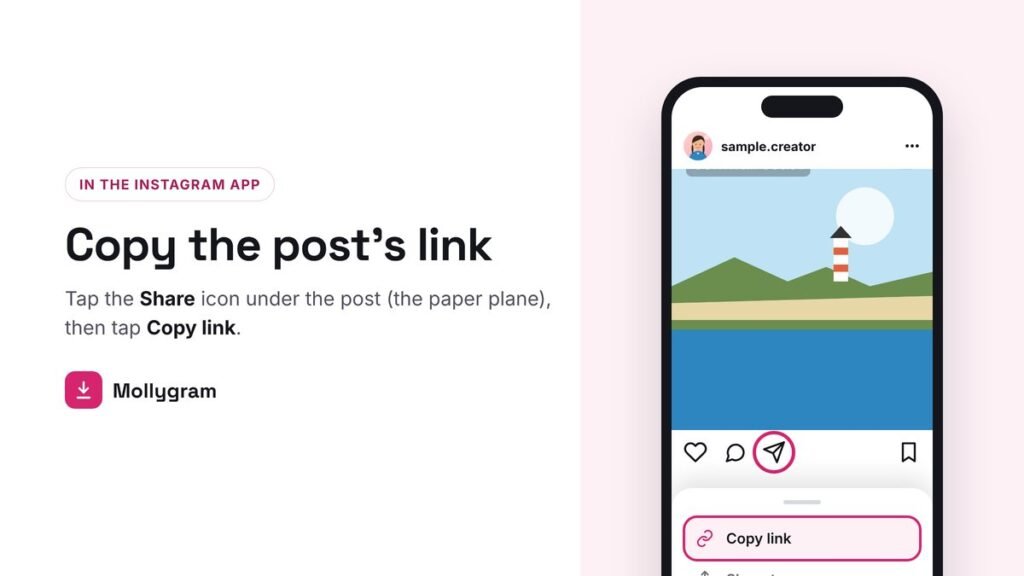
The fix: open the video, tap Share, then Copy link, and paste that. To save someone’s profile picture instead, use the Profile Picture Downloader.
4. The link was only partly copied
What you’ll see: “That doesn’t look like an Instagram link.”
This usually happens when a link is copied by hand and a few characters are missed, or when something else was copied by accident.
The fix: go back to Instagram and use the Copy link option rather than selecting the text yourself. Mollygram ignores extra text around a link, so pasting a whole message that contains the link is fine.
5. You’re using an app’s built-in browser
What you’ll see: the preview appears, but tapping Download video does nothing, or the video just plays.
When you open a website from inside another app (Instagram, Facebook, TikTok or a messaging app), it opens in that app’s own mini browser. Many of these don’t allow downloads.
The fix: open mollygram.co.uk directly in Safari on iPhone or Chrome on Android, then try again.
6. The video downloaded, but you can’t find it
What you’ll see: nothing obviously wrong, but the video isn’t in your gallery.
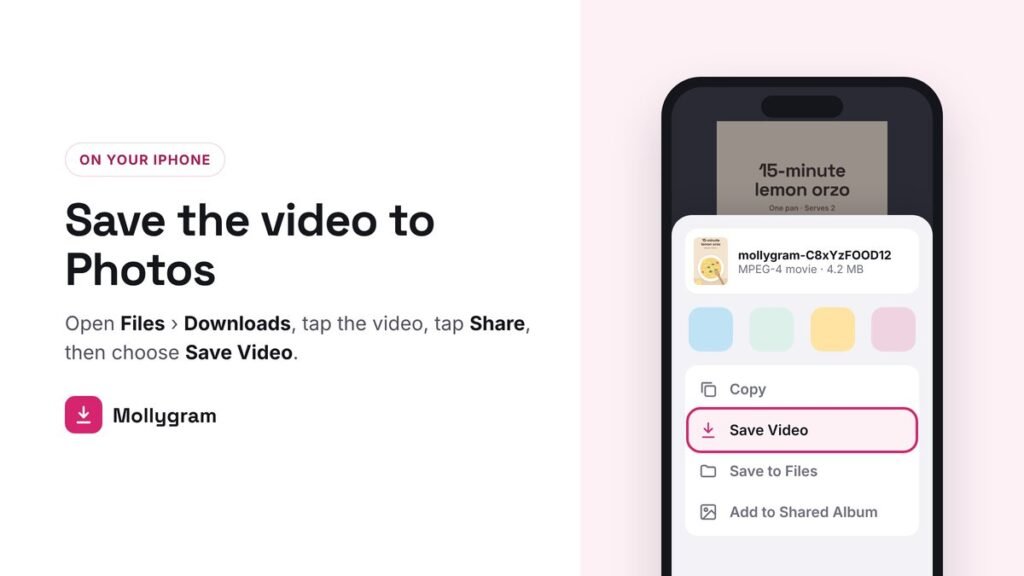
- iPhone: Safari saves downloads to the Files app, in Downloads. Open the video there, tap Share and choose Save Video to move it into Photos.
- Android: look in the Files app (called My Files on Samsung) under Downloads. Most phones also show it in your gallery within a few seconds.
- Computer: check your Downloads folder.
7. The video has no sound
What you’ll see: the video plays, but it’s silent.
Some videos are posted without sound. Instagram also sometimes removes music from posts for licensing reasons, so a song you heard last month might not be there now. Mollygram saves exactly the audio Instagram provides.
The fix: play the video on Instagram. If it’s silent there too, the download will be silent. If it has sound on Instagram but not in the file, try a different video player, such as VLC.
8. “Busy” or “too many requests” messages
What you’ll see: “Mollygram is busy right now. Please try again in a minute” or “You’ve made a lot of requests in a short time. Please wait a few minutes and try again.”
To keep the site fast and fair for everyone, Mollygram limits how many searches one person can make in a short time. Very occasionally, Instagram is also slow to respond.
The fix: wait a few minutes, then try again. You don’t need to do anything else.
Still stuck?
A few final checks that solve most other problems:
- Make sure you have enough free storage on your phone.
- Try on Wi-Fi. Large videos can stall on a weak mobile signal.
- Refresh the page and paste the link again.
If none of these help, contact us with the Instagram link you’re trying to download, and we’ll take a look.
More about Instagram Videos
Start here: Instagram Video Downloader
1 thought on “Why Can’t I Download an Instagram Video? 8 Problems and How to Fix Them”