Instagram doesn’t have a button that puts a video into your camera roll. Saving a post only keeps it inside the app, which isn’t much help when you want to watch it offline, send it in another app or keep it safe.
Here’s how to get any public Instagram video into your phone’s gallery, whether you use an iPhone or an Android phone.
The quick version
- Copy the video’s link in Instagram (Share, then Copy link).
- Paste it into the Mollygram Video Downloader and tap Download.
- Tap Download video.
- On iPhone, move it from the Files app into Photos. On Android, it’s usually in your gallery already.
Now the details for each phone.
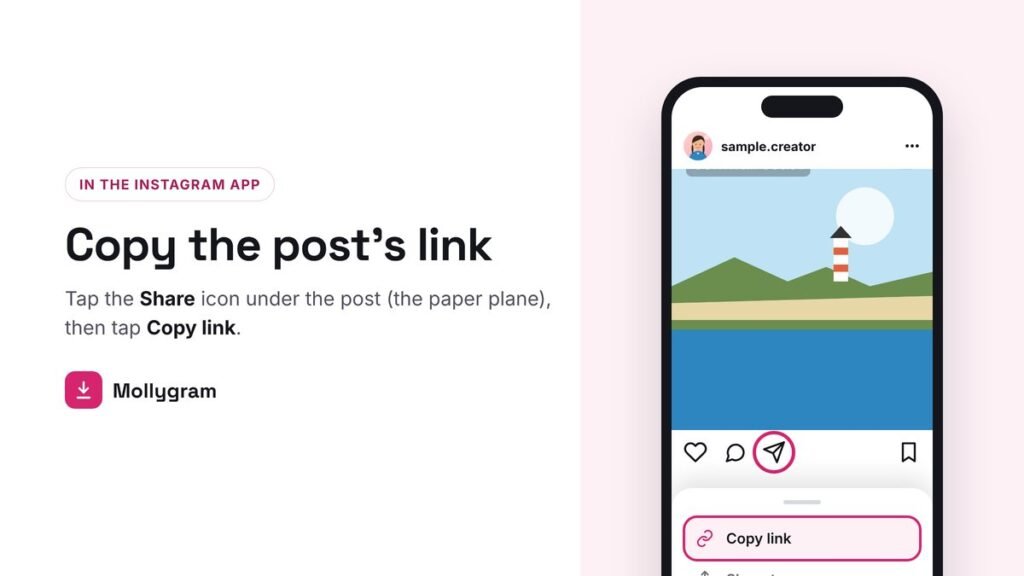
Copy the video’s link
On the video in Instagram, tap the Share icon (the paper plane) and choose Copy link. This works for normal video posts, Reels and videos inside carousels.
Download the video
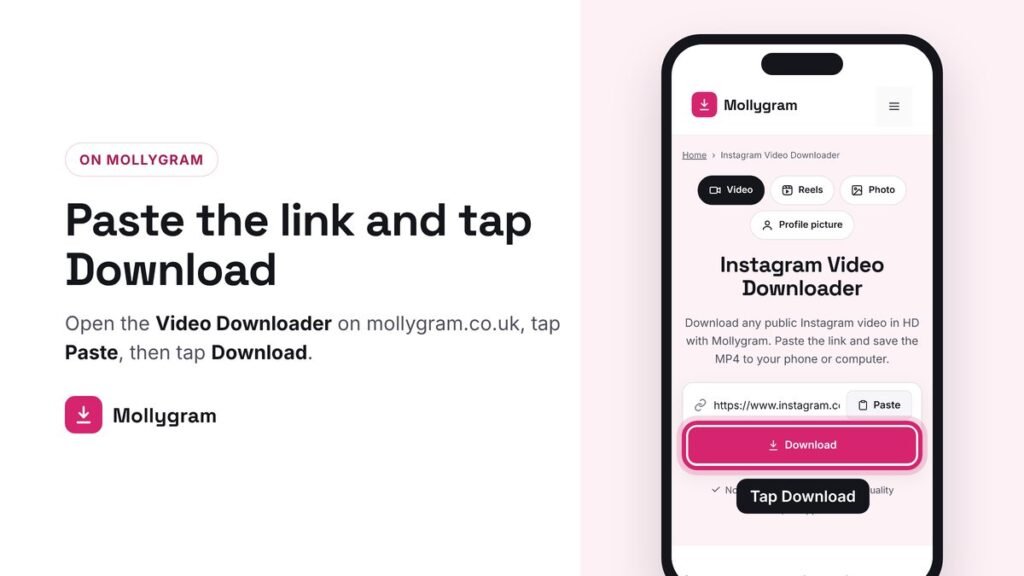
Open mollygram.co.uk in Safari (iPhone) or Chrome (Android). Paste the link into the box and tap Download, then tap Download video when the preview appears.
iPhone: move it into your camera roll
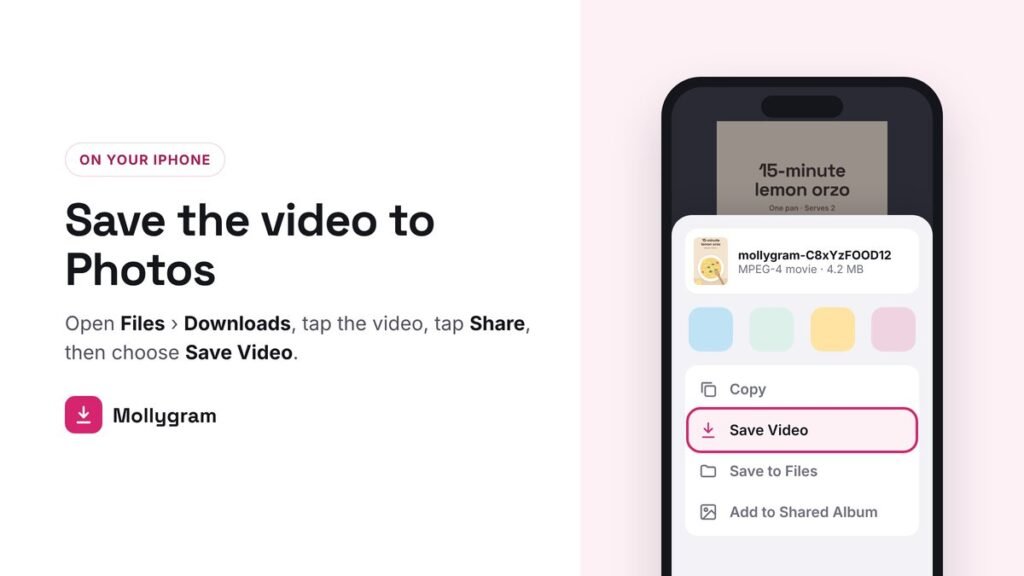
Safari saves downloads to the Files app first. To get the video into Photos:
- Open Files and tap Downloads.
- Tap the video to open it.
- Tap Share, then Save Video.
The video now appears in your camera roll, under Recents. You can then delete the copy in Files to free up space.
Android: check your gallery
On Android, the video goes into your Downloads folder, and most gallery apps show it straight away:
- Samsung Gallery: Albums, then Download.
- Google Photos: Library, then Photos on device, then Download.
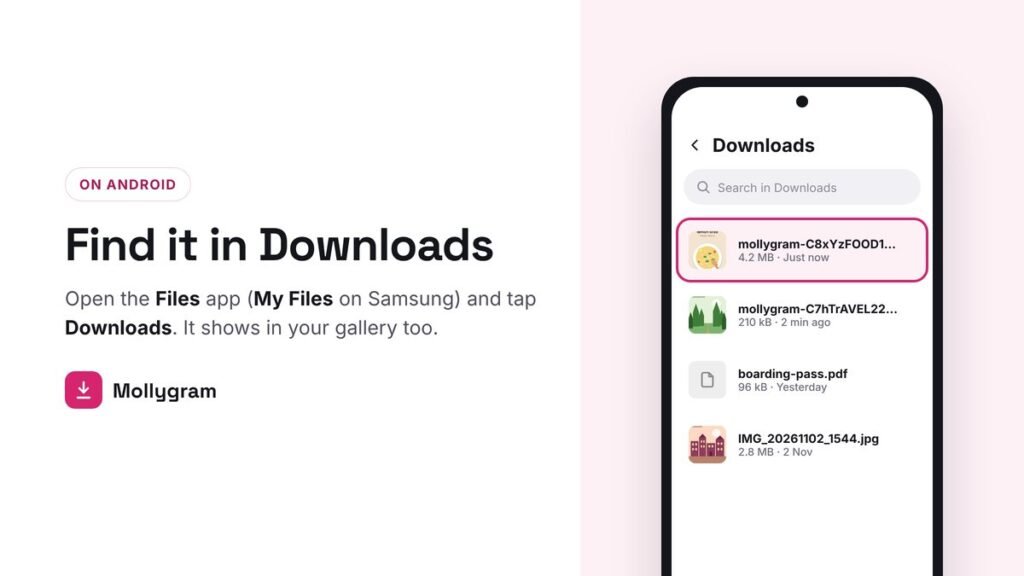
If it isn’t there, open the Files app (My Files on Samsung) and look in Downloads. The video will be there, and your gallery should pick it up shortly.
Will it be backed up?
That depends on your settings:
- iPhone: videos in Photos are backed up if iCloud Photos is on.
- Android: Google Photos only backs up the Download folder if you turn backup on for it, under Photos on device.
If a video really matters to you, check that it has been backed up before you delete anything else.
Common problems
| Problem | What to do |
|---|---|
| The video isn’t in my camera roll (iPhone) | It’s in the Files app, in Downloads. Use Share, then Save Video. |
| The video isn’t in my gallery (Android) | Look in Files, then Downloads. Restart the gallery app if needed. |
| There’s no sound | If the video is silent on Instagram, the download will be silent too. |
| Download does nothing | You may be in an app’s built-in browser. Open mollygram.co.uk in Safari or Chrome. |
Still stuck? Our full guide to fixing Instagram download problems has more answers.
More about Instagram Videos
Start here: Instagram Video Downloader