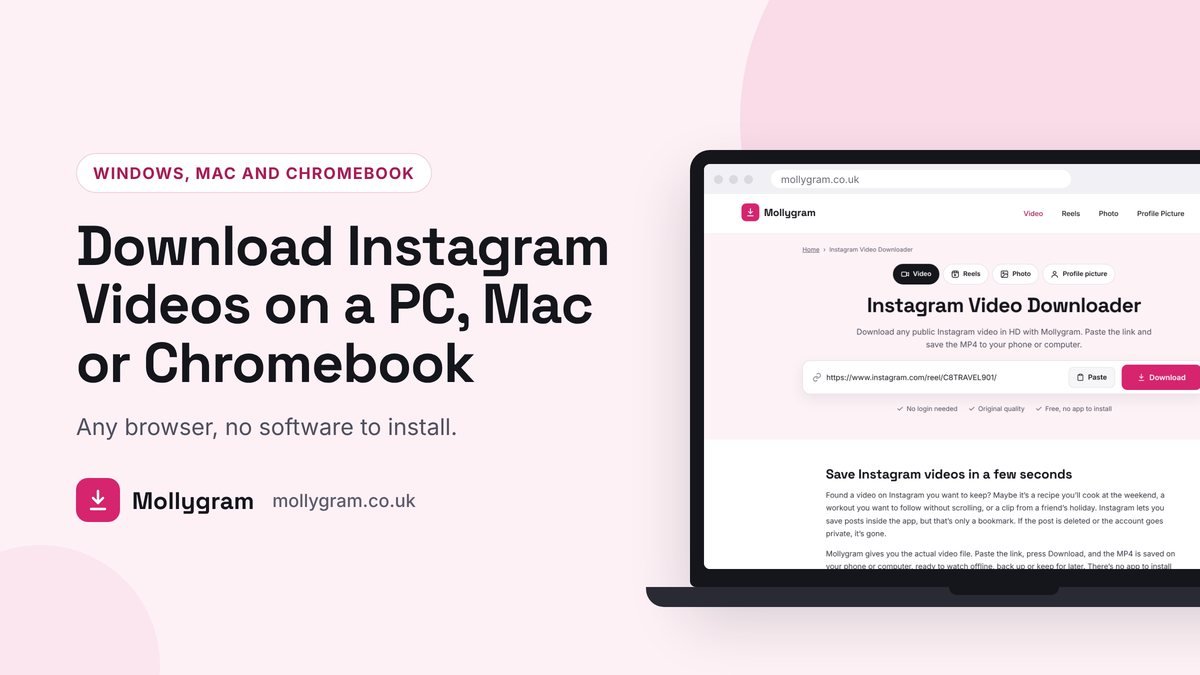
Watching Instagram on a computer is handy, but there’s no download button on instagram.com either. If you need a video for a presentation, a report or just to watch on a bigger screen, here’s how to save it on Windows, Mac or Chromebook, with no software to install.
Step 1: Copy the video’s link
Open the video on instagram.com. There are two easy ways to copy its link:
- Click the three dots next to the post and choose Copy link.
- Or click into your browser’s address bar and copy the address. It looks like instagram.com/p/… or instagram.com/reel/…
You can also copy the link on your phone and send it to yourself, if that’s easier.
Step 2: Paste it into Mollygram
Open mollygram.co.uk in Chrome, Edge, Safari or Firefox. Paste the link into the box (press Ctrl + V on Windows and Chromebook, or Cmd + V on Mac) and click Download.

Step 3: Save the file
Click Download video. Your browser saves the MP4 file to your Downloads folder.
On a Mac, Safari may ask whether to allow downloads from mollygram.co.uk the first time. Click Allow.
Where to find it
- Windows: open File Explorer and click Downloads. The video opens in the Media Player app, or in VLC if you have it.
- Mac: open Finder and click Downloads. The video opens in QuickTime Player.
- Chromebook: open the Files app and click Downloads (or My files). It plays in the built-in video player.
In most browsers you can also click the download icon near the address bar to open the file straight away.
Getting the video onto your phone
If you’ve downloaded a video on your computer but want it on your phone:
- Mac to iPhone: use AirDrop. Right-click the file, choose Share, then AirDrop.
- Any computer to any phone: upload it to Google Drive, OneDrive or iCloud Drive, then open it on your phone and save it.
- Windows to Android: connect the phone with a USB cable and copy the file across.
Often it’s quicker to download straight on your phone instead. See our guides for iPhone and Android.
Using the video in a presentation
MP4 works in PowerPoint, Keynote and Google Slides. Insert it like any other video. If you’re presenting someone else’s video in public or at work, ask the creator first and credit them on the slide. Our guide on crediting Instagram creators explains how.
Common questions
Do I need to log in to Instagram on my computer?
No. If the video is public, you can open it on instagram.com and copy its link without logging in, or copy the link on your phone.
Can I download several videos at once?
Paste one link at a time. Each download only takes a few seconds.
Which format will the video be?
MP4, which plays on almost every computer, phone and TV, and works in video editors.
More about Instagram Videos
Start here: Instagram Video Downloader