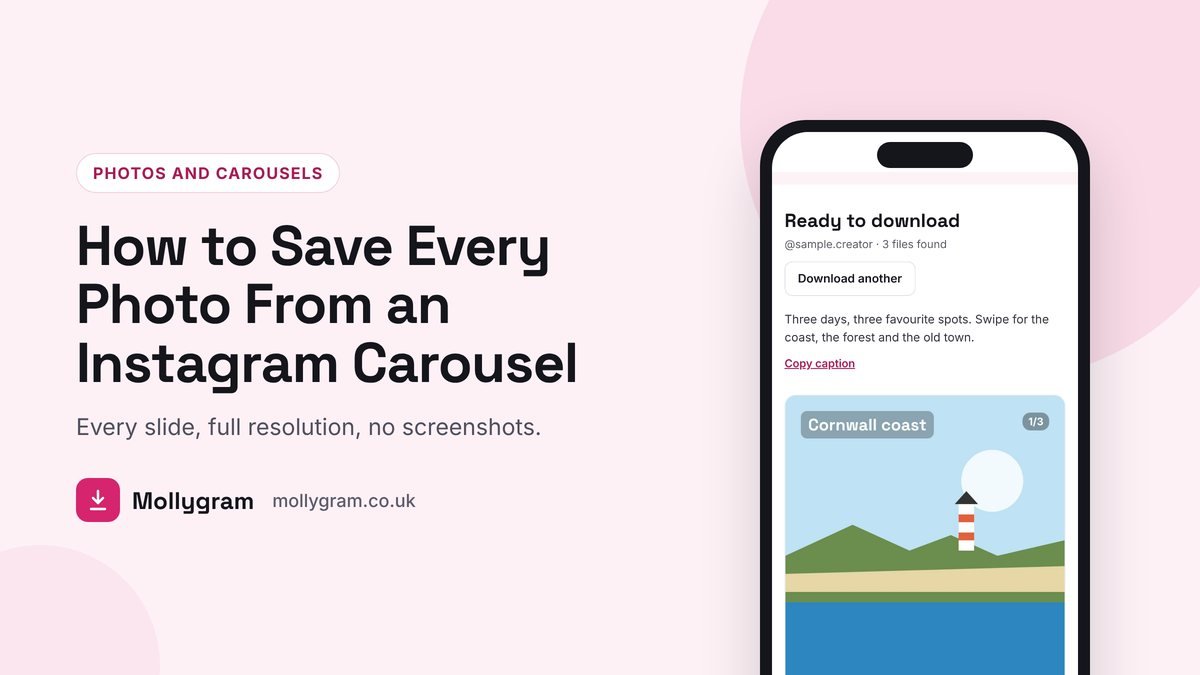
Carousel posts are the ones you swipe through: a set of photos (and sometimes videos) shared together. They’re perfect for recipes, holiday albums, outfit ideas and step-by-step guides, and they’re also the most frustrating posts to save. Screenshotting each slide is slow, crops the photos and fills your camera roll with Instagram’s buttons.
Here’s how to save every slide properly, in full resolution.
Step 1: Copy the carousel’s link
Open the post in Instagram, tap the Share icon (the paper plane) and choose Copy link. Make sure you copy the link to the carousel itself, not to a single photo someone shared elsewhere.

Step 2: Paste it into the Photo Downloader
Open the Mollygram Photo Downloader, paste the link and tap Download.

Step 3: Save the slides you want
Mollygram shows every slide on one screen, in the same order as on Instagram. Each one has its own button: Download photo for pictures and Download video for any videos in the post.

Save them all, or just the ones you need.
Saving lots of slides on iPhone
On iPhone, each photo goes to the Files app, in Downloads. To move several photos into your camera roll at once:
- Open Files, then Downloads.
- Tap the three dots (or Select) and choose the photos.
- Tap Share, then Save Images.
On Android, the photos appear in your gallery’s Download album automatically.
Why downloading beats screenshots
- Full quality: you get the original image file, usually 1080 pixels wide, not a copy of your screen.
- Nothing cropped: square, portrait and landscape photos keep their real shape.
- No clutter: no clock, battery icon, buttons or caption.
- Much faster: one link instead of a screenshot for every slide.
Curious about the exact sizes? Our guide to Instagram photo sizes explains them.
Keep your carousels organised
A ten-slide recipe makes no sense if the photos get mixed up with everything else in your camera roll. A few habits help:
- Make an album for each carousel or topic, such as “Lasagne recipe” or “Lisbon trip ideas”.
- Keep the order: files from Mollygram are numbered (-1, -2, -3…) in the same order as the slides.
- Note the creator: add their @username to the album name, so you always know who to credit.
Common questions
How many slides can a carousel have?
Instagram allows up to 20 photos and videos in one post. Mollygram shows all of them.
Can I download a carousel from a private account?
No. Only public posts can be downloaded.
Some slides are videos. Can I save those too?
Yes. Video slides appear with a play icon and a Download video button.
Can I repost the photos?
Only with the creator’s permission, and always with credit. The photos belong to them.
More about Instagram Photos & Posts
Start here: Instagram Photo Downloader