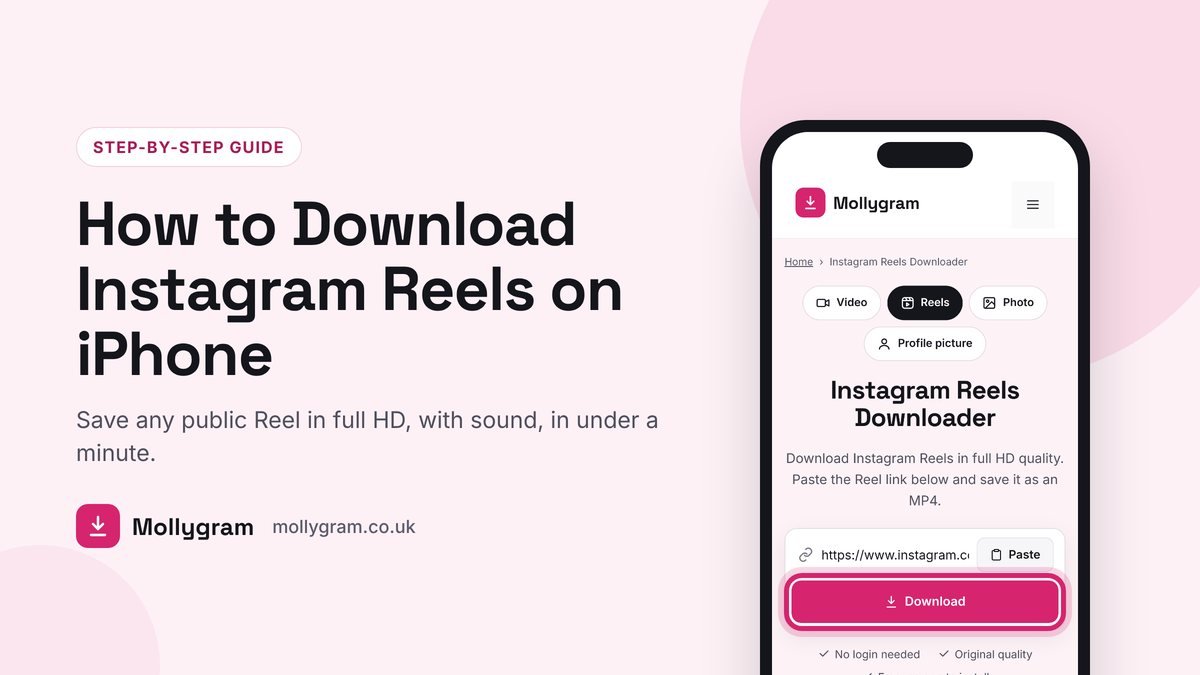
You’ve found a Reel you want to keep: a recipe for Sunday, a ten-minute workout, a tutorial you’ll need again next month. Tapping Save in Instagram only bookmarks it inside the app, and if the creator ever deletes it, your saved Reel goes with it.
The good news is that saving a real copy to your iPhone takes less than a minute, and you don’t need to install anything. Here’s exactly how to do it with Safari and Mollygram.
What you need
- An iPhone or iPad with Safari (any recent version of iOS is fine)
- The Reel you want to save, from a public account
- A little free storage. A one-minute Reel is usually somewhere between 10 and 30 MB.
You don’t need an Instagram account for this, and you never type in a password.
Step 1: Copy the Reel’s link
Open the Reel in the Instagram app. Tap the Share icon (the paper plane) under the Reel, then tap Copy link. You’ll see a small “Link copied” message.

If someone sent you the Reel in a message, open it first and copy the link the same way.
Step 2: Open Mollygram in Safari
Open Safari and go to mollygram.co.uk. It’s worth using Safari rather than opening the website from inside another app, because the browsers built into apps like Instagram often block downloads.
Tip: add Mollygram to your Home Screen so it’s one tap away next time. In Safari, tap the Share button and choose Add to Home Screen.
Step 3: Paste the link and tap Download
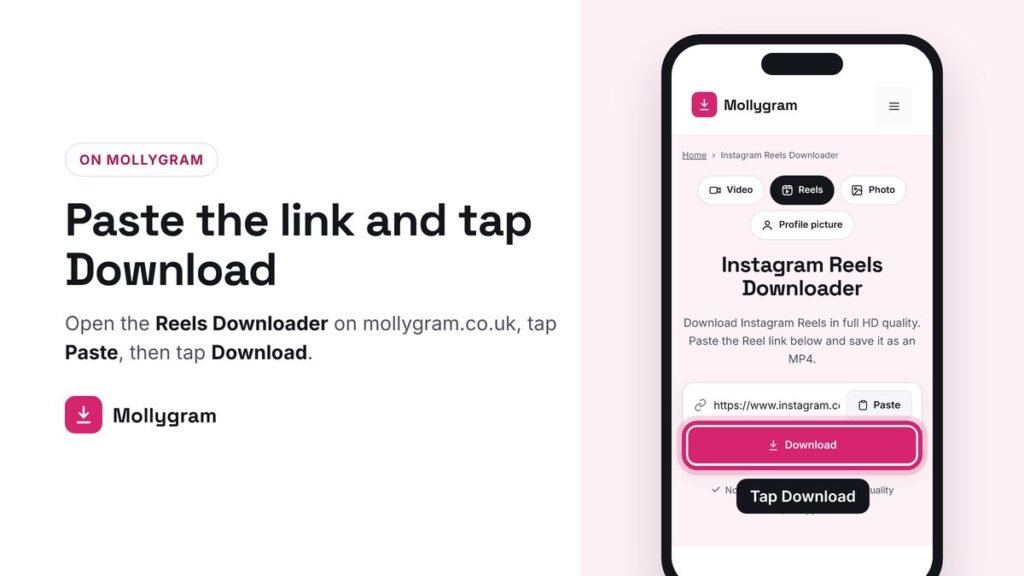
Tap the Paste button next to the box, or press and hold inside the box and choose Paste. If your iPhone asks whether Mollygram can paste from Instagram, tap Allow Paste. Then tap Download.
After a few seconds you’ll see a preview of the Reel, how long it is and its size, usually 1080 × 1920.
Step 4: Save the Reel
Tap Download video. Safari asks whether you want to download the file, so tap Download. You can also tap Download thumbnail if you’d like the Reel’s cover image as a separate picture.

Step 5: Move it into your Photos app
Safari saves downloads to the Files app, not straight to Photos. To move the Reel:
- Open the Files app and go to Downloads.
- Tap the Reel to open it.
- Tap the Share button and choose Save Video.
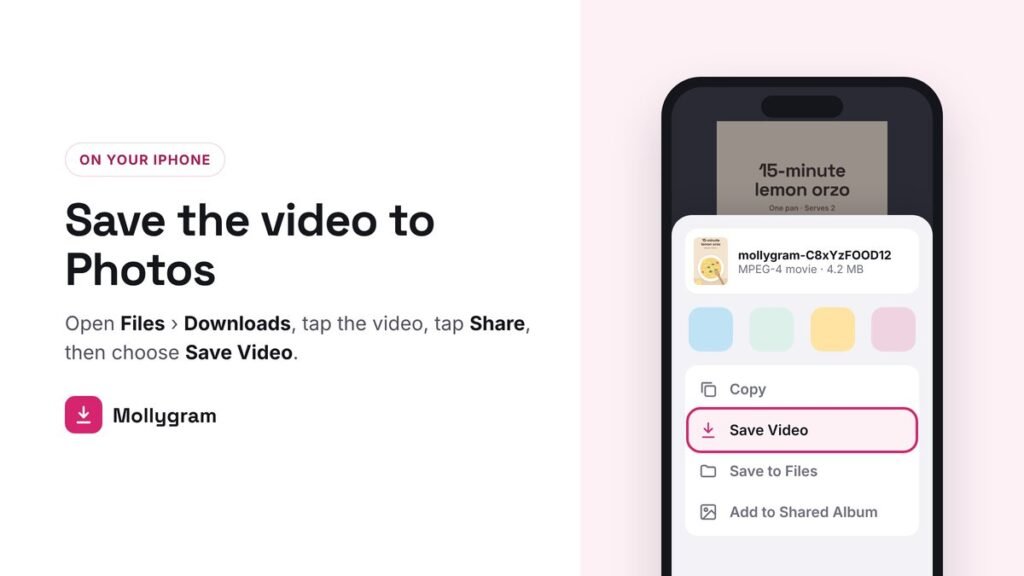
The Reel now appears in Photos, with its original sound, ready to watch offline.
Can’t find the Downloads folder?
Safari normally saves to iCloud Drive, in a folder called Downloads. If you’ve changed this, go to Settings, open Safari (on newer versions of iOS it’s under Settings → Apps → Safari) and tap Downloads to see where your files go. You can switch it to On My iPhone if you’d rather your downloads didn’t use iCloud storage.
If something doesn’t work
- “That doesn’t look like an Instagram link”: copy the link again using Share, then Copy link, and paste it.
- “We couldn’t find any photos or videos”: the account is probably private, or the Reel has been deleted. Only public Reels can be downloaded.
- Nothing happens when you tap Download: you’re probably in an app’s built-in browser. Open mollygram.co.uk in Safari.
- The Reel has no sound: Instagram sometimes removes music for licensing reasons. If it’s silent on Instagram, it’ll be silent in the file too.
For more fixes, see our guide to Instagram downloads that won’t work.
A quick word on fair use
Downloading a Reel to watch later is how most people use Mollygram. Reposting someone else’s Reel is different: the video belongs to the creator, and so does any music in it. If you’d like to share it, ask the creator first and always credit them. Our guide on how to credit Instagram creators shows you how.
Quick recap
- In Instagram, tap Share, then Copy link.
- Open mollygram.co.uk in Safari and paste the link.
- Tap Download, then Download video.
- In the Files app, open the Reel and tap Share, then Save Video.
That’s it. Your Reel is saved on your iPhone in full quality, with sound, and it’s yours to watch whenever you like.
More about Instagram Reels
Start here: Instagram Reels Downloader