
Android makes saving Reels pleasantly simple. There’s no extra app to install and no Files-to-Photos shuffle like on iPhone: the Reel goes into your Downloads folder and usually shows up in your gallery straight away.
This guide works on Samsung, Google Pixel, Motorola, Xiaomi, OnePlus and every other Android phone, in Chrome, Samsung Internet or any up-to-date browser.
Step 1: Copy the Reel’s link
Open the Reel in the Instagram app and tap the Share icon (the paper plane). Then tap Copy link.

Step 2: Paste it into Mollygram
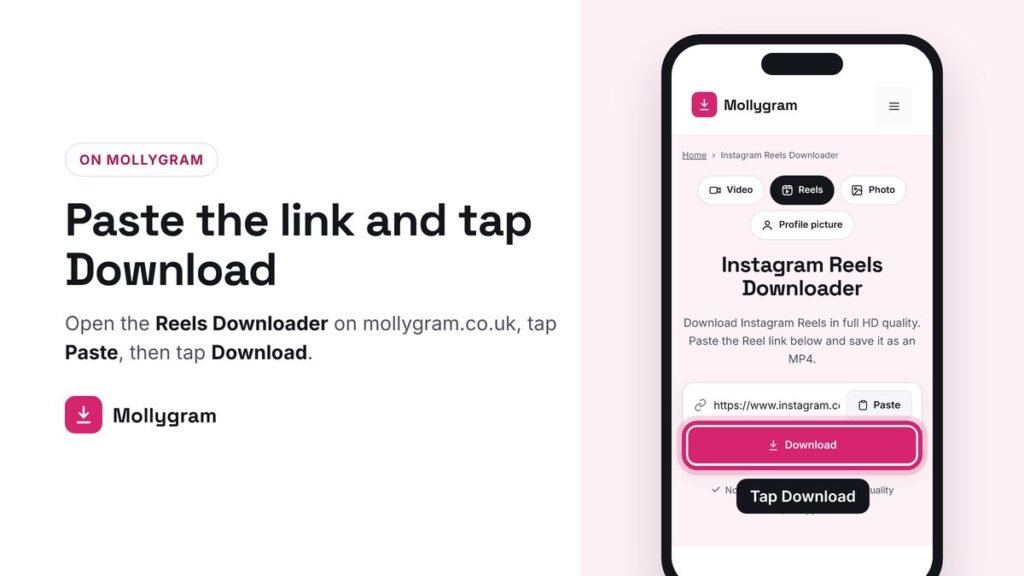
Open Chrome (or Samsung Internet) and go to mollygram.co.uk. Tap Paste, or press and hold in the box and choose Paste, then tap Download.
Tip: in Chrome, tap the three dots at the top right and choose Add to Home screen. Mollygram will then open like an app, one tap from your home screen.
Step 3: Tap Download video
When the preview appears, tap Download video. Chrome shows a small “Downloading” message at the bottom of the screen and then Download complete. If you want the Reel’s cover image too, tap Download thumbnail.

Step 4: Find your Reel
Most phones add downloaded videos to your gallery automatically within a few seconds. Where to look:
- Samsung Gallery: open Albums and look for Download.
- Google Photos: tap Library, then look under Photos on device for the Download folder.
- Files app: open Files (called My Files on Samsung) and tap Downloads.
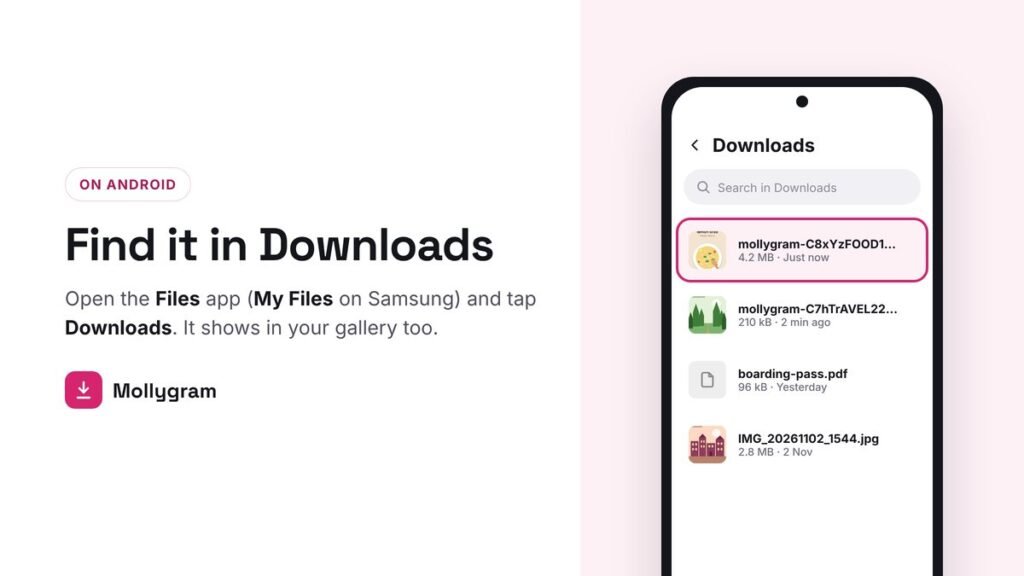
You can also tap the Download complete message in Chrome to open the Reel straight away.
Why isn’t the Reel in my gallery?
Occasionally a phone takes a minute to notice a new download. If you can’t see it:
- Open your Files app and check Downloads. If it’s there, the download worked.
- Close and reopen your gallery app.
- In Google Photos, make sure the Download folder is switched on under Photos on device.
Saving lots of Reels? Keep them organised
Downloads can pile up quickly. In the Files app you can create folders, such as Recipes, Workouts or Travel, and move Reels into them. Most gallery apps will then show each folder as its own album.
Common questions
Do I need the Instagram app?
No. You only need the link. You can even copy it from instagram.com in your browser.
Is the quality as good as on Instagram?
Yes. Mollygram saves the Reel in the resolution it was uploaded in, usually full HD (1080 × 1920), with the original sound.
Can I download Reels from private accounts?
No. Only Reels from public accounts can be downloaded.
Does it use a lot of storage?
A one-minute Reel is usually between 10 and 30 MB, so even a phone with a few gigabytes free can hold hundreds.
If anything goes wrong, our troubleshooting guide covers the most common problems.
More about Instagram Reels
Start here: Instagram Reels Downloader